
Fixing the Missing @ and ~ in macOS Terminal for International Keyboards
If you are using a non-US keyboard layout on macOS—such as German, Spanish, or French—you likely rely on the Option (⌥) key to type essential characters like @, ~, |, or \.
However, a default setting in the macOS Terminal can completely block these inputs, leaving you unable to type email addresses or file paths. Here is why it happens and how to fix it in seconds.
The Problem: The “Meta Key” Conflict
By default, Unix-based systems and command-line applications often use the Option key as a Meta key for navigation shortcuts (e.g., jumping between words). When this behavior is enabled in macOS Terminal, pressing Option + L (on a German layout) sends a command shortcut to the terminal instead of outputting the @ symbol.
The Fix: Update Terminal Settings
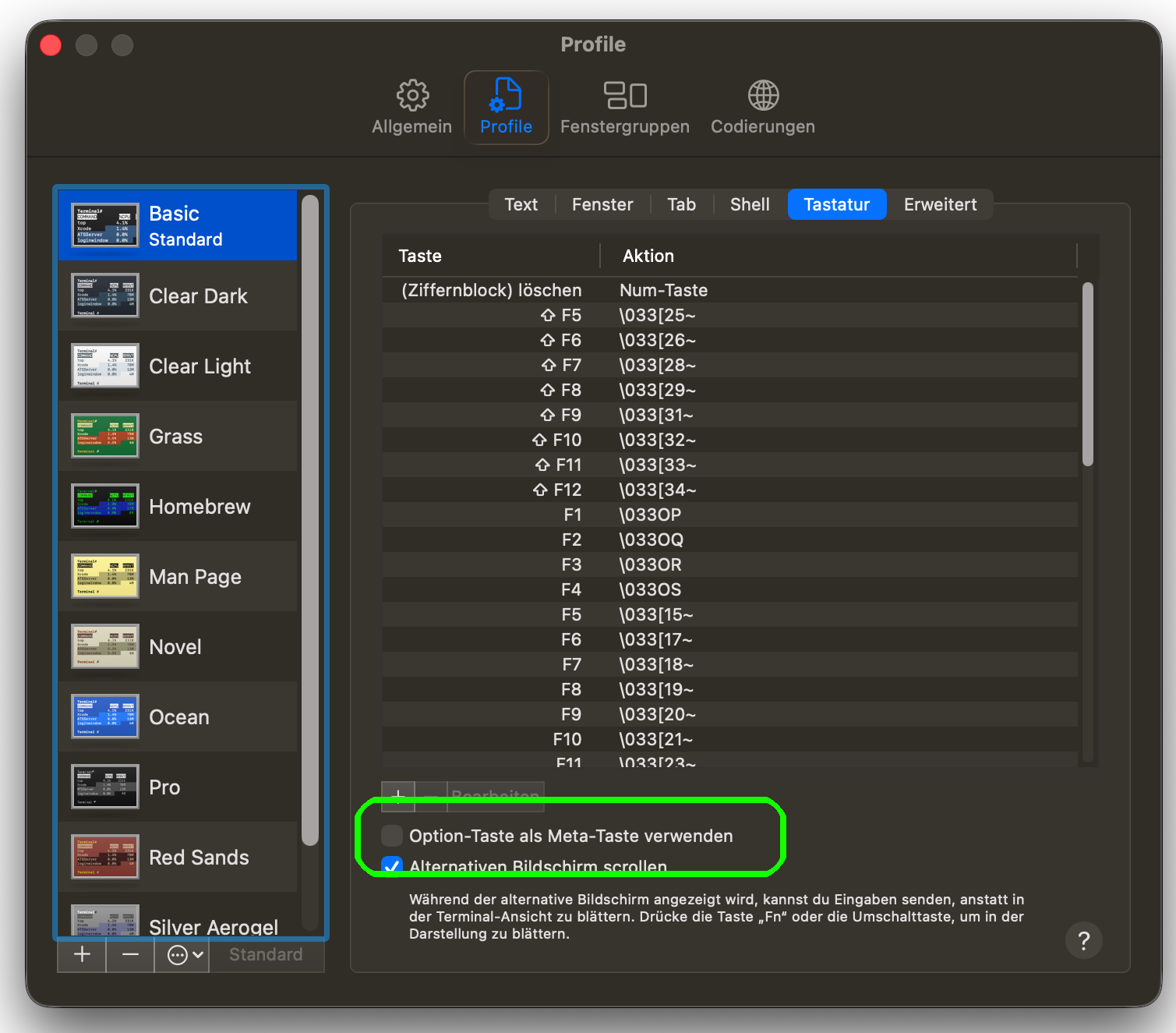
To restore your keyboard’s standard layout behavior, disable the Meta key overriding feature:
- Open Terminal and go to Settings
(Cmd + ,). - Navigate to the Profiles tab.
- Select your active profile from the left sidebar.
- Click on the Keyboard sub-tab.
- Uncheck the box labeled “Use Option as Meta key”.
Pro-Tip: The Toggle Shortcut
If you frequently switch between needing the Option key for navigation shortcuts and needing it for special characters, you can toggle this setting on the fly using the keyboard shortcut:
Command + Option + O